
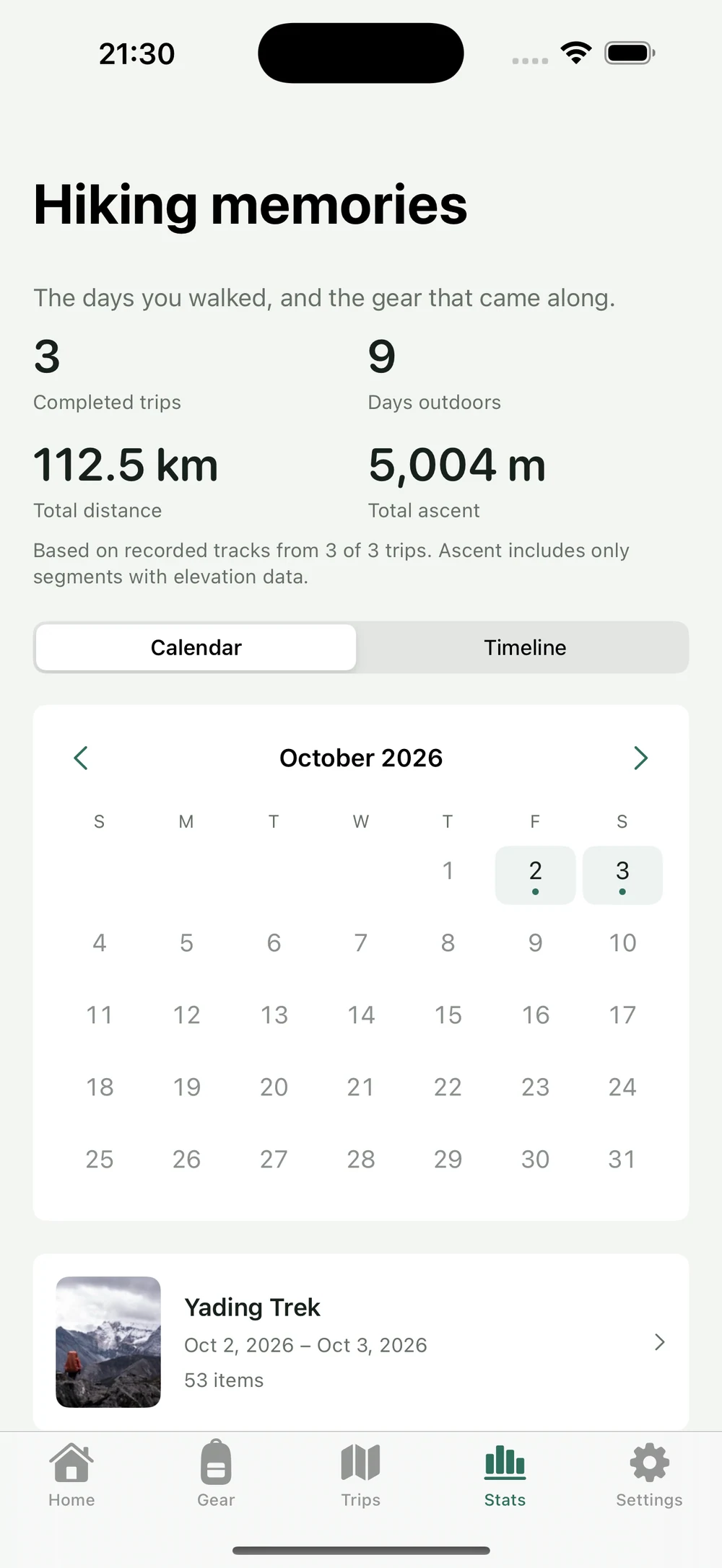
To find an outing on a particular day, start with the calendar. To recognize it by a cover photo, start with the timeline. HikerKit 2.0 puts both views in Hiking memories under Stats, linking to the same trip record. This tutorial begins with an unfinished trip, confirms completion, finds its date, opens its memory, switches to the timeline, and saves a memory card.
The calendar includes trips you have confirmed as completed. A past planned date does not automatically become a hiking record. The timeline is not generated from every photo’s EXIF data and does not create an individual-photo sequence or route.
This walkthrough uses the English interface and the Yading Trek demonstration. Counts and weights describe the illustrated configuration.
Prepare the trip dates and completion record
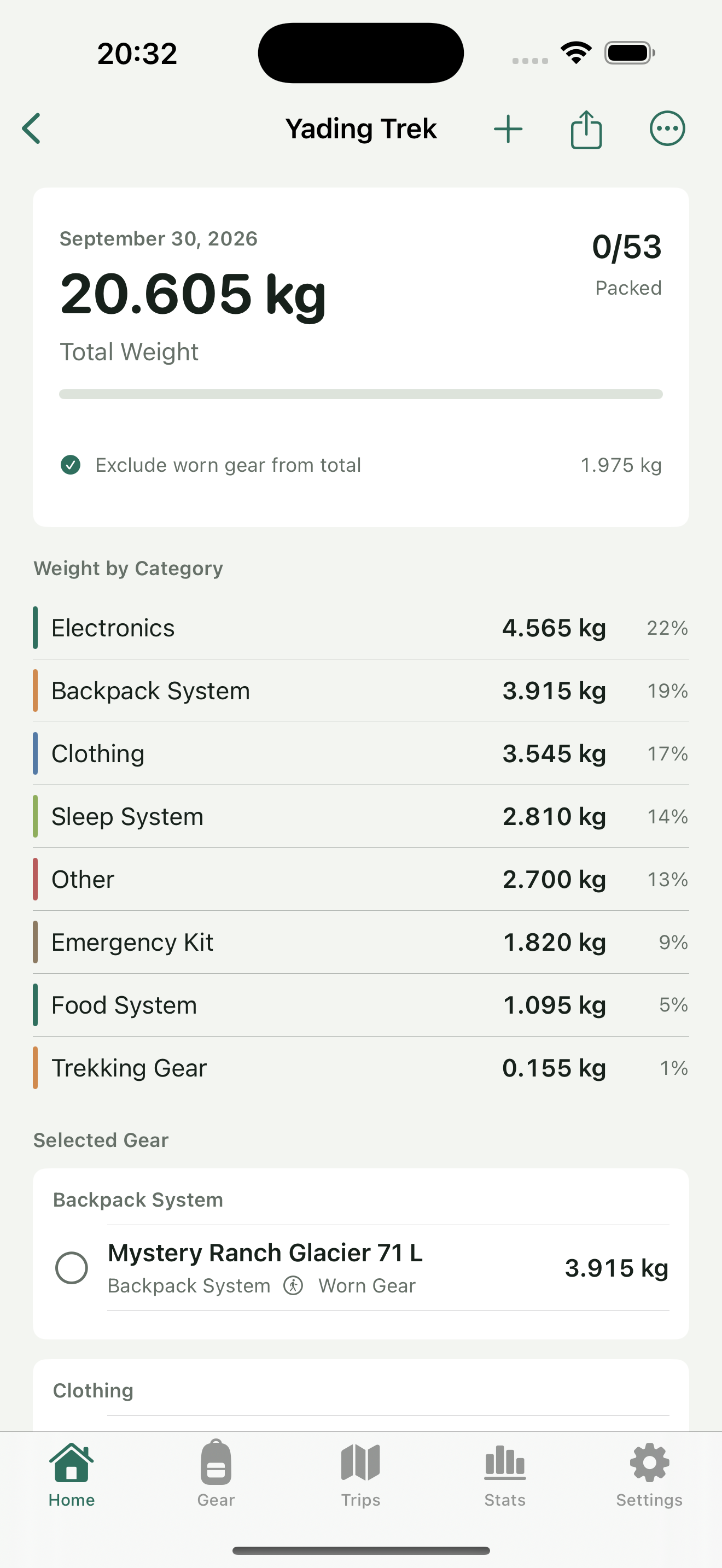
Open Trips and find the record. Review its name, planned information, and gear checklist; the actual start and end dates are checked in the completion form next. Import and save GPX through the trip-track controls first if needed. A cover photo and memory text can be added in the completion form in the next step. Dates should reflect the outing rather than be adjusted simply to create a calendar marker.
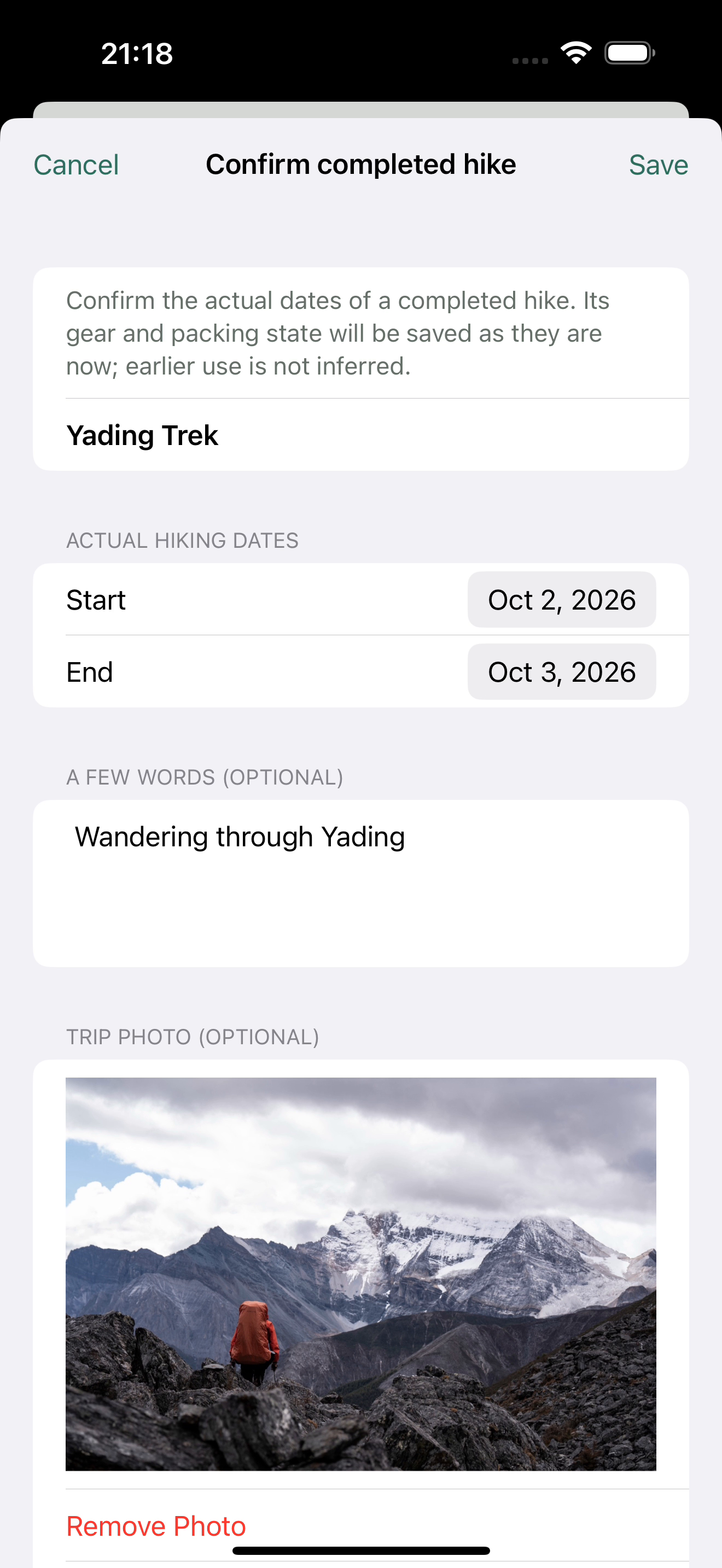
A multi-day trip needs the correct date range. When completed trips overlap, hiking days are counted by distinct dates rather than by adding every trip’s duration. The cover photo helps identify the outing, but its capture timestamp does not determine that day count.
Step 1 Manually confirm the trip is complete
Open the trip’s three-dot menu and choose “Confirm completed hike,” the action for confirming completion. Review the actual start and end dates in the form, add optional memory text, and use “Choose from Library” to add a photo if needed. Once the details are ready, tap “Save” at the top right. Check the finished state in the list or details before opening Stats.
This captures the gear snapshot for the trip. Later library edits do not change the historical names, quantities, or weights. The snapshot reflects the checklist you confirmed; it does not mean the app detected which equipment you actually used outdoors.
If the outing is still only a plan or has not finished, leave it unfinished. That keeps the meaning of the calendar and cumulative statistics clear.
Step 2 Open Hiking memories in Stats
Open Stats to reach Hiking memories. The top of the screen shows completed-trip count, hiking days, distance, and ascent. The Calendar and Timeline controls switch between two views of these records. Choose Calendar first.
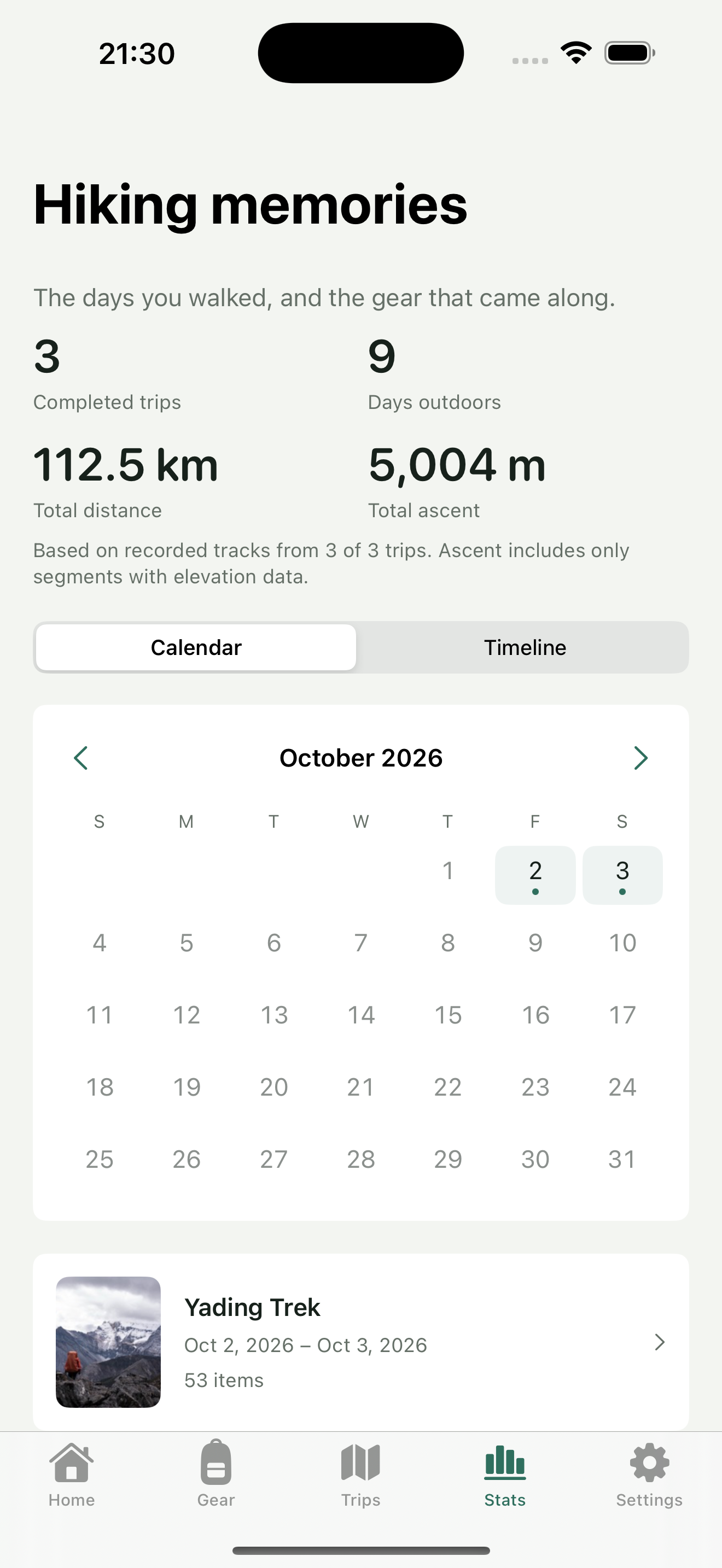
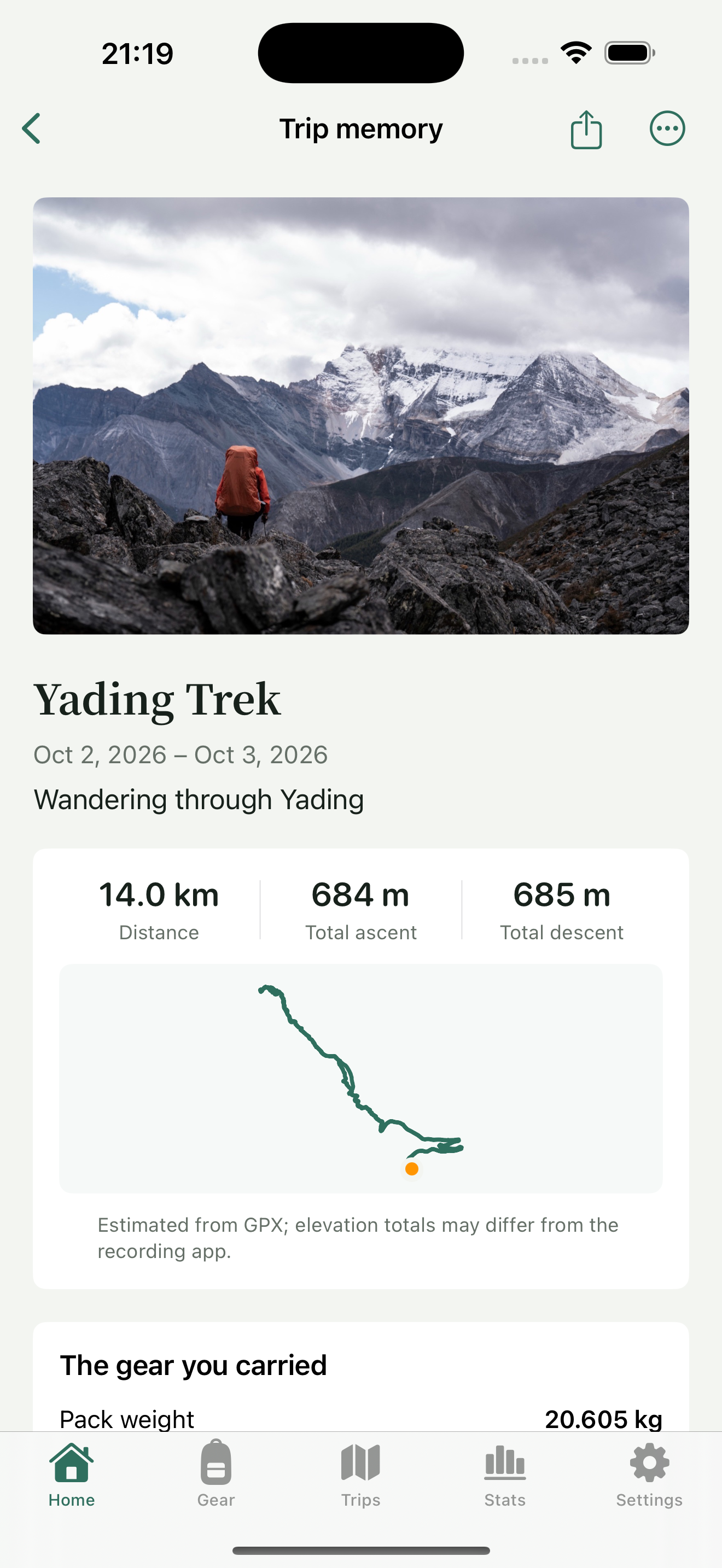
This demonstration shows 3 Completed trips, 9 Days outdoors, 112.5 km Total distance, and 5,004 m Total ascent, based on recorded tracks from 3 of 3 trips. These are cumulative figures for all three records. The round-trip track imported for this Yading outing totals 14.0 km, with 684 m of ascent and 685 m of descent. The overview totals must not be presented as this outing’s figures.
Read the track-coverage explanation alongside the totals. Distance comes from valid GPX in completed trips. Ascent includes only track segments with elevation data. A completed trip without GPX is still a completed record, but its walked distance cannot be filled in automatically. Missing elevation is not evidence that there was no climbing.
The totals describe the valid records currently entered and confirmed. Before comparing them with another app, check whether it includes the same trips, track segments, and dates. A difference in coverage can explain different numbers without either screen describing the entire outing.
Step 3 Find the month and select a marked date
Use the arrows beside the month to reach the trip’s month. In this example, October 2 and 3, 2026 both have trip markers. Tap a marked date and check the trip cards underneath. A multi-day trip may cover several marked dates, so verify the name and date range on the card after selecting a day.
If multiple trips overlap that day, use their names to identify the correct one. A date marker alone is not a unique trip identifier. Older trips added later appear according to their actual dates, so the latest record entered may not be the latest outing.
Step 4 Open the trip card
Tap the card beneath the calendar to open Trip memory. Check its cover photo, actual dates, memory text, imported route, and historical gear. The calendar does not create details you have not added.
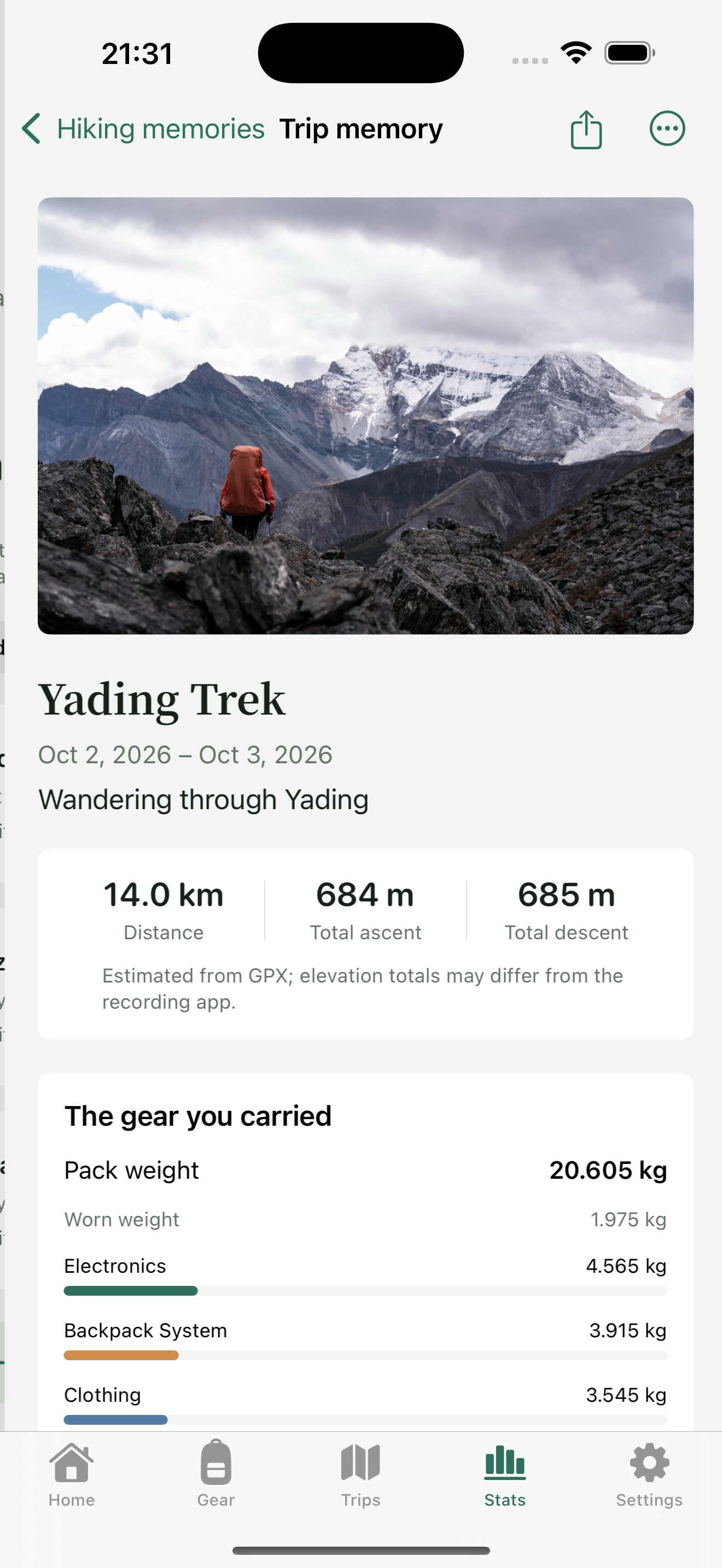
To revisit equipment choices, continue to the historical gear or open charts from the three-dot menu. Remember that completed records use their snapshots before comparing them with a current configuration. Replacing an item in the library should not make you misread an older trip as having used today’s equipment.
Step 5 Return to Stats and switch to Timeline
Return from Trip memory to Stats, then select Timeline. It shows completed trips that have cover photos, ordered by trip date. Use the image, name, and date range to find an outing, then tap its card to open the same memory details.
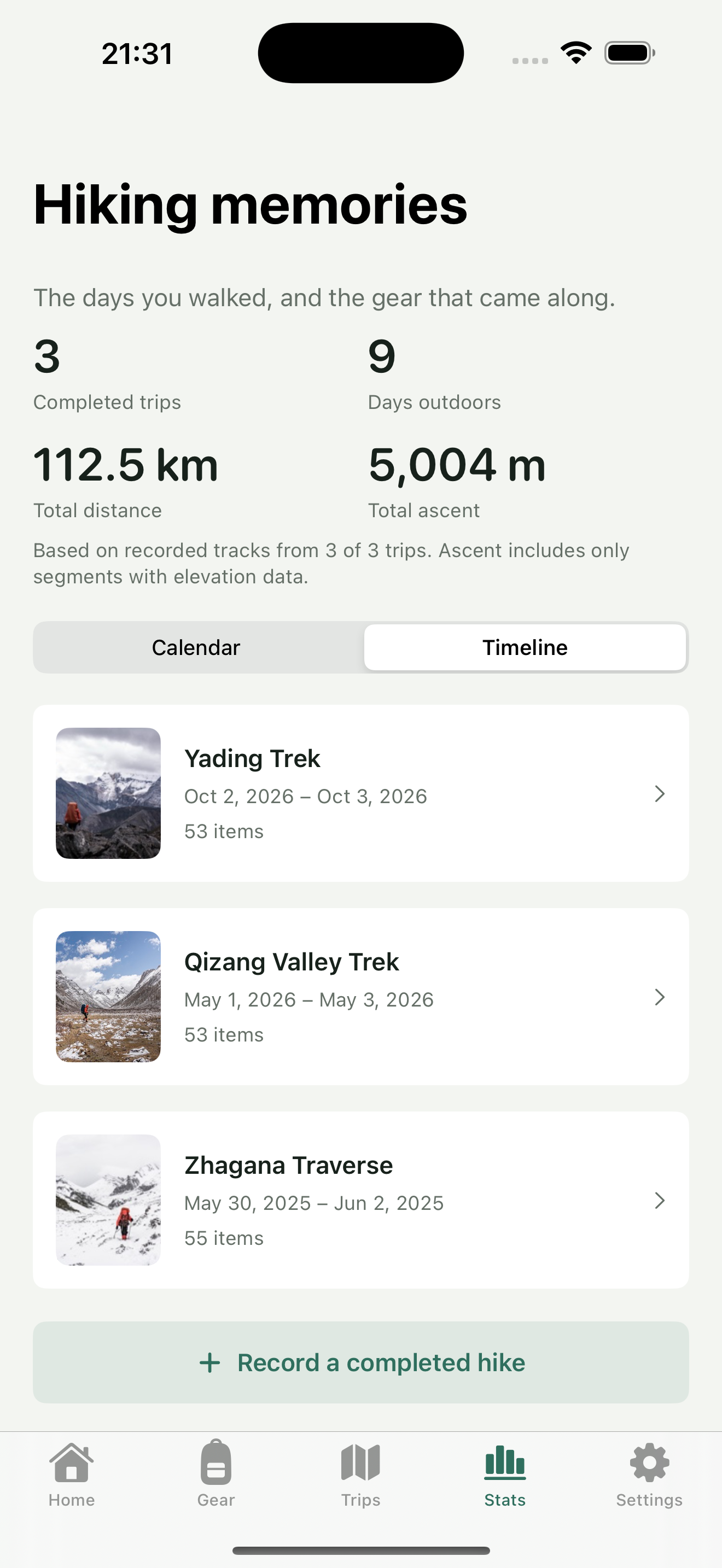
This is a timeline of trips, not every photograph within a trip. If a record has no cover photo, find it through Calendar or the trip list, then add a cover if you want one. Adding a photo later does not turn an old outing into a recent trip; the order follows the trip dates.
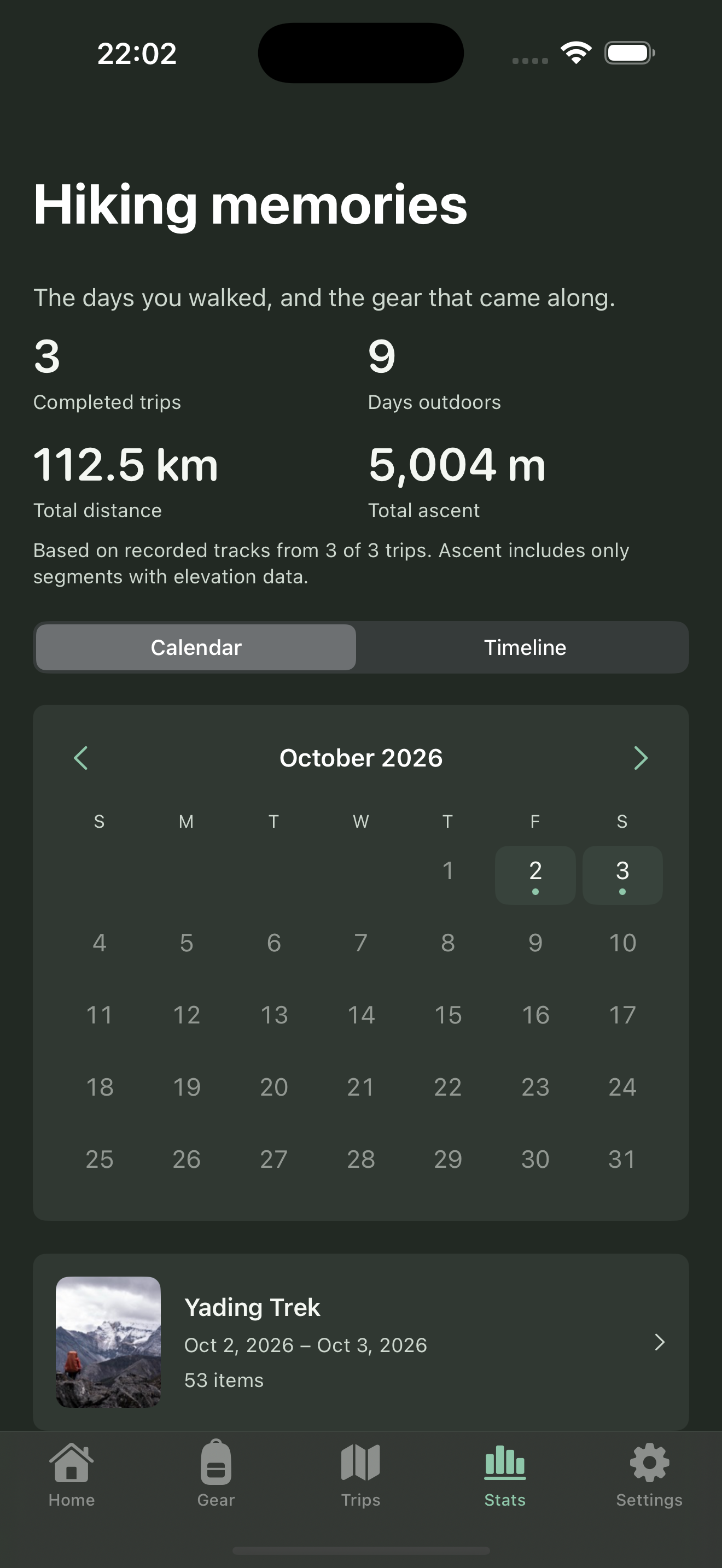
The light and dark app themes change appearance, not completion status or statistics. After changing theme, you should still be reviewing the same trip and dataset.
Step 6 Save a memory card from the trip you found
In Trip memory, choose “Share a memory card” from the three-dot menu. Set the date, text, route, and image colors you want shown. Check the preview and retain its settings, then use Save to Photos or Share Image. The memory screen’s shortcut sharing control uses the saved card configuration.
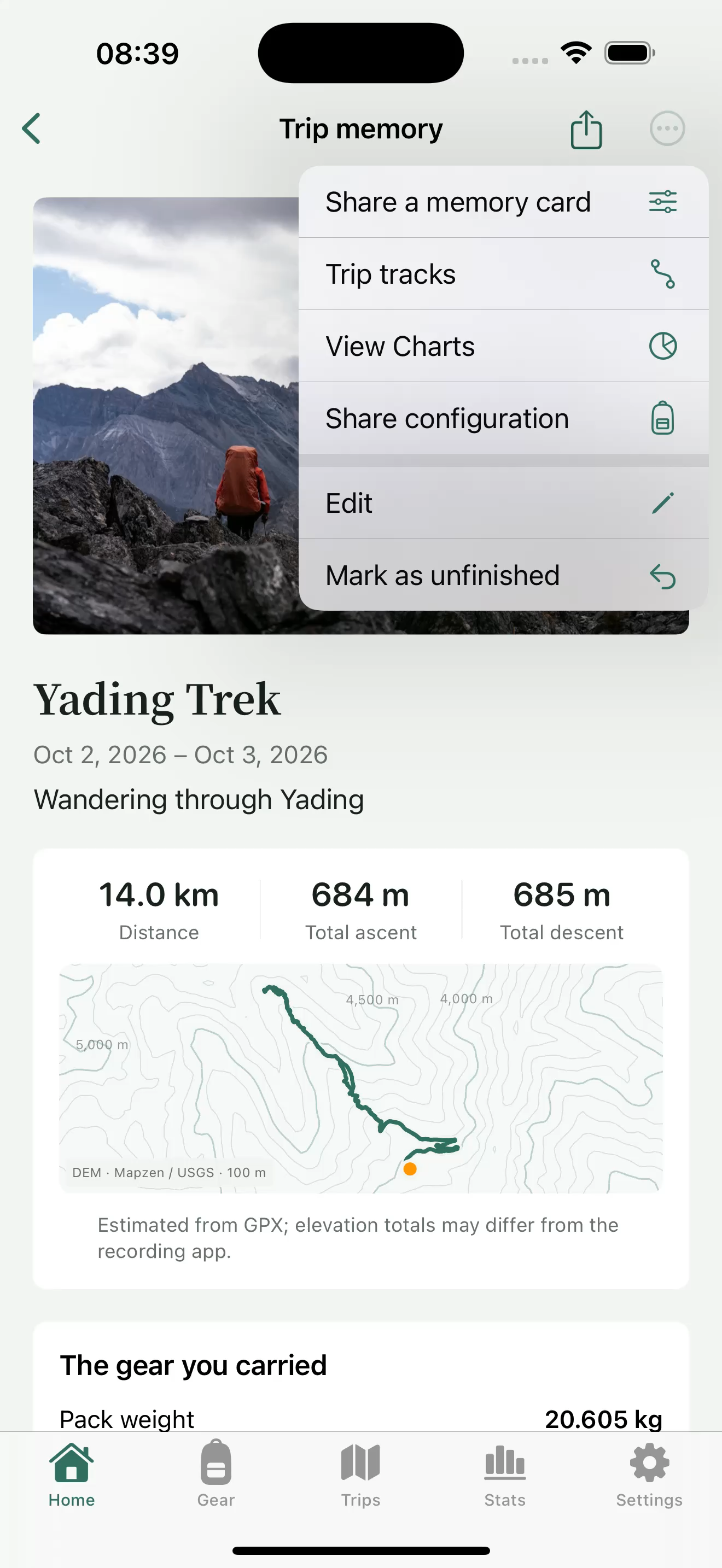 Trip memory: Share a memory card / Share configuration
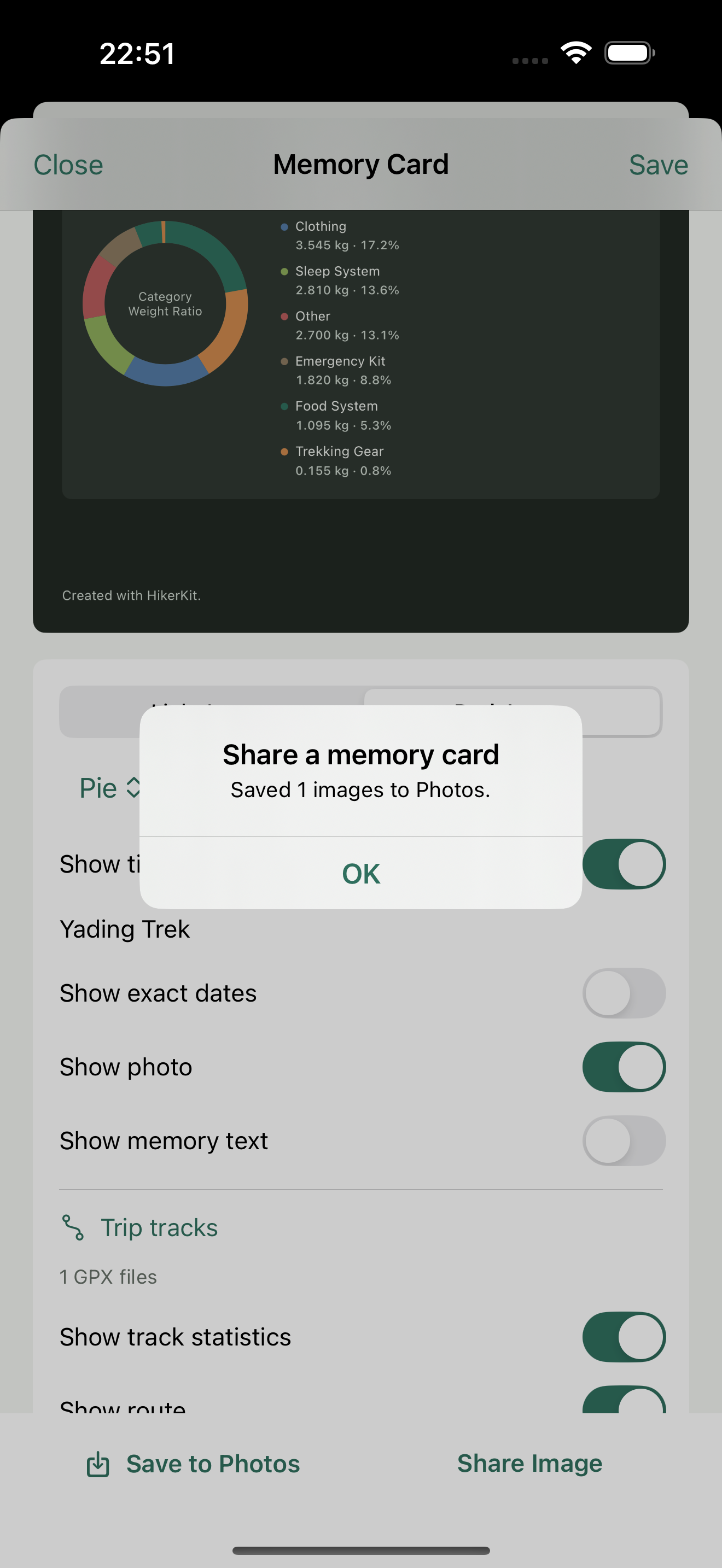 Dark contour memory card: saved to Photos
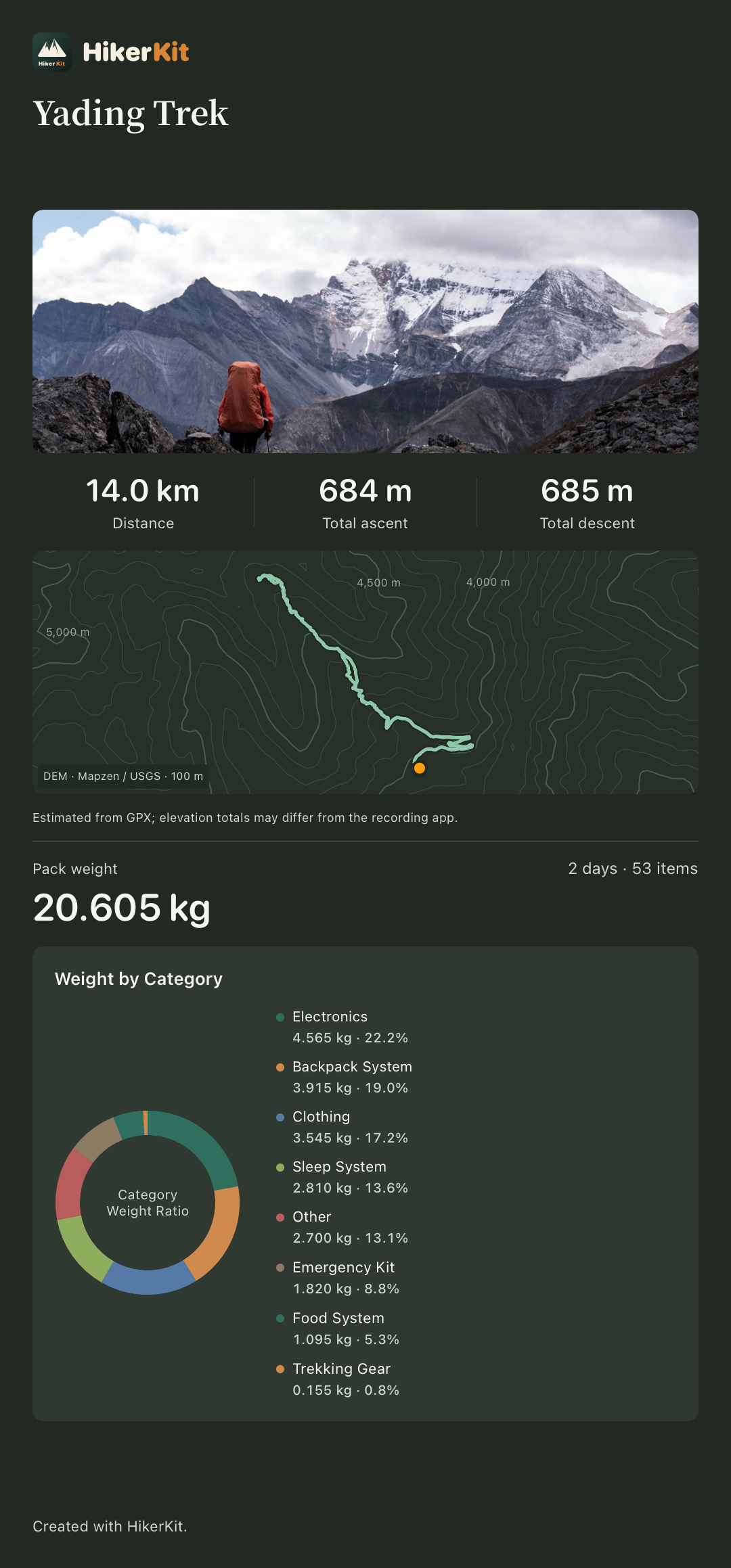 Actual dark contour memory-card PNG
Calendar navigation and card export were captured in separate segments for the same trip. No image was sent to any contact. Keeping settings and sending an image are separate actions. Before publishing, review the name, dates, photo, and route, especially private locations shown on the map. The timeline helps you find the record but does not automatically anonymize its image.
Frequently asked questions
Why is a past trip missing from Calendar
Check that you manually confirmed completion, then check the month and date range. A planned date passing does not complete the trip automatically.
Does tapping a calendar date open Timeline
No. A selected date shows trip cards, and a card opens Trip memory. Return to Stats to switch to Timeline.
Why is a trip in Calendar but missing from Timeline
Check whether it has a cover photo and look under its actual trip dates. Timeline shows completed trips with covers, not every photo in the library.
Can I correct old dates or gear
Undo completion from the three-dot menu, correct the information, and confirm again. Existing photos, memory text, and tracks are retained. Reconfirming freezes the current gear configuration; check the calendar and totals afterward too.